Creating a crossword puzzle can be a fun and engaging way to challenge your mind and entertain others. Whether you want to create one for a party, educational purposes, or just for personal enjoyment, using Microsoft Word can simplify the process. With its grid layout and formatting tools, Word provides an accessible platform for designing your own crossword puzzle.
In this article, we will guide you through the steps to create a crossword puzzle in Word. You will learn how to set up the grid, input your words and clues, and format your puzzle for a polished look. By following these simple instructions, you can create a customized crossword that suits your needs.
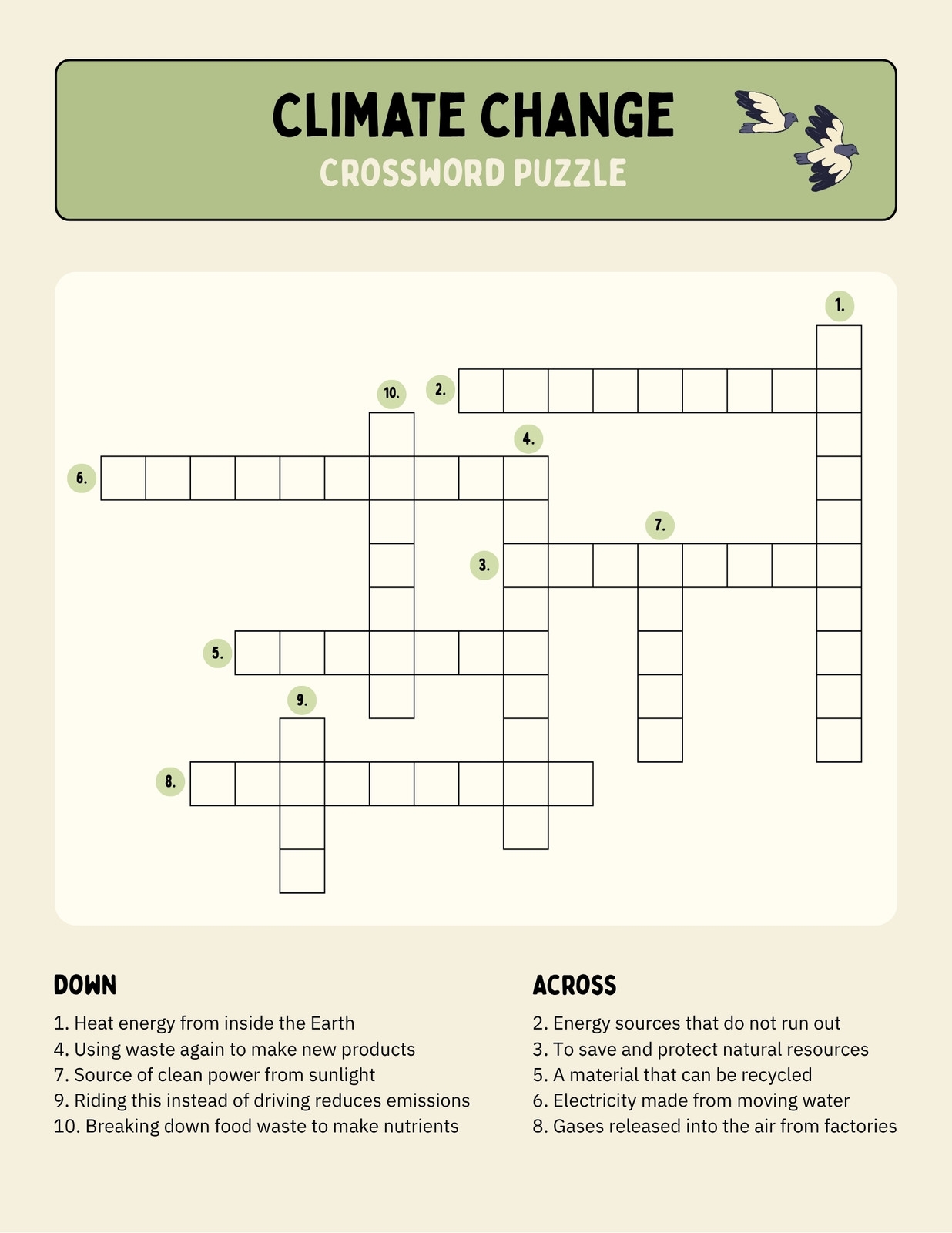 how to create a crossword puzzle in word
How to Create a Crossword Puzzle in Word
To begin creating your crossword puzzle, open Microsoft Word and start with a new blank document. First, you need to create a grid that will serve as the foundation of your puzzle. You can do this by inserting a table. Go to the “Insert” tab, click on “Table,” and select the desired number of rows and columns based on the size of your puzzle.
Once you have your table in place, adjust the cell sizes to make them square-shaped. This can be done by right-clicking on the table, selecting “Table Properties,” and then adjusting the row height and column width. A uniform size will make it easier for players to fill in their answers. After setting up the grid, you can begin filling in your words. Choose words that intersect with each other to create a more challenging puzzle.
Next, input your words into the appropriate cells of the table. You may want to use bold text or a different font color to distinguish between filled-in letters and empty cells. To add clues for each word, create a separate section below or beside the grid where you list them numerically according to their placement in the puzzle (across or down). This helps players easily reference clues while solving.
Finally, take some time to format your crossword puzzle for clarity and aesthetics. You can add borders around the table for better visibility or shade certain cells to indicate black squares that separate words. Additionally, consider adding instructions at the top of the document explaining how to play if you’re sharing it with others.
Creating a crossword puzzle in Word is not only straightforward but also allows for creativity and personalization. By following these steps, you can design an enjoyable activity that can be shared with friends, family, or students. With practice, you’ll be able to craft intricate puzzles that challenge even the most seasoned crossword enthusiasts.
Download and Print how to create a crossword puzzle in word
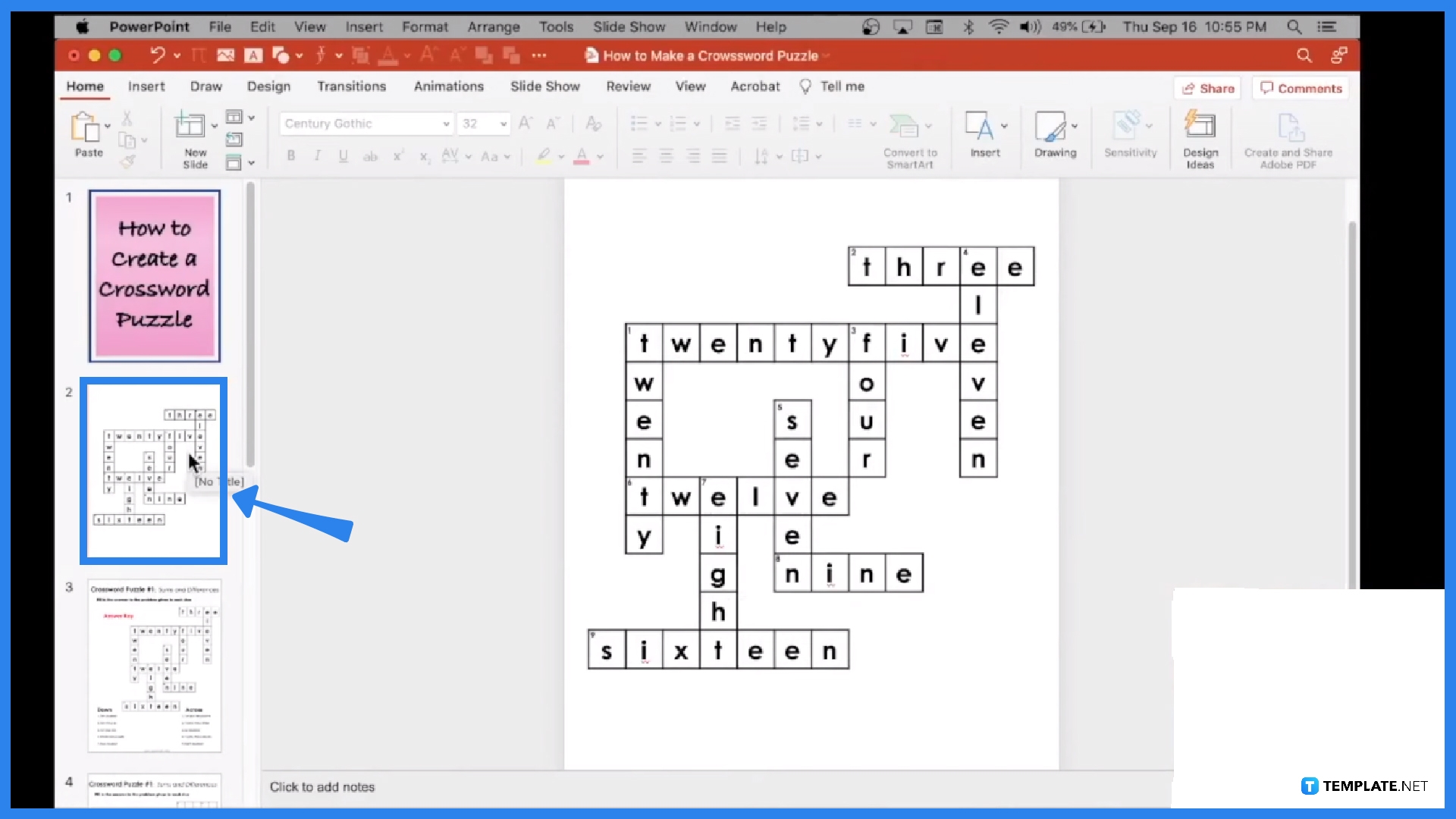 How To Do A Crossword Puzzle In Microsoft PowerPoint
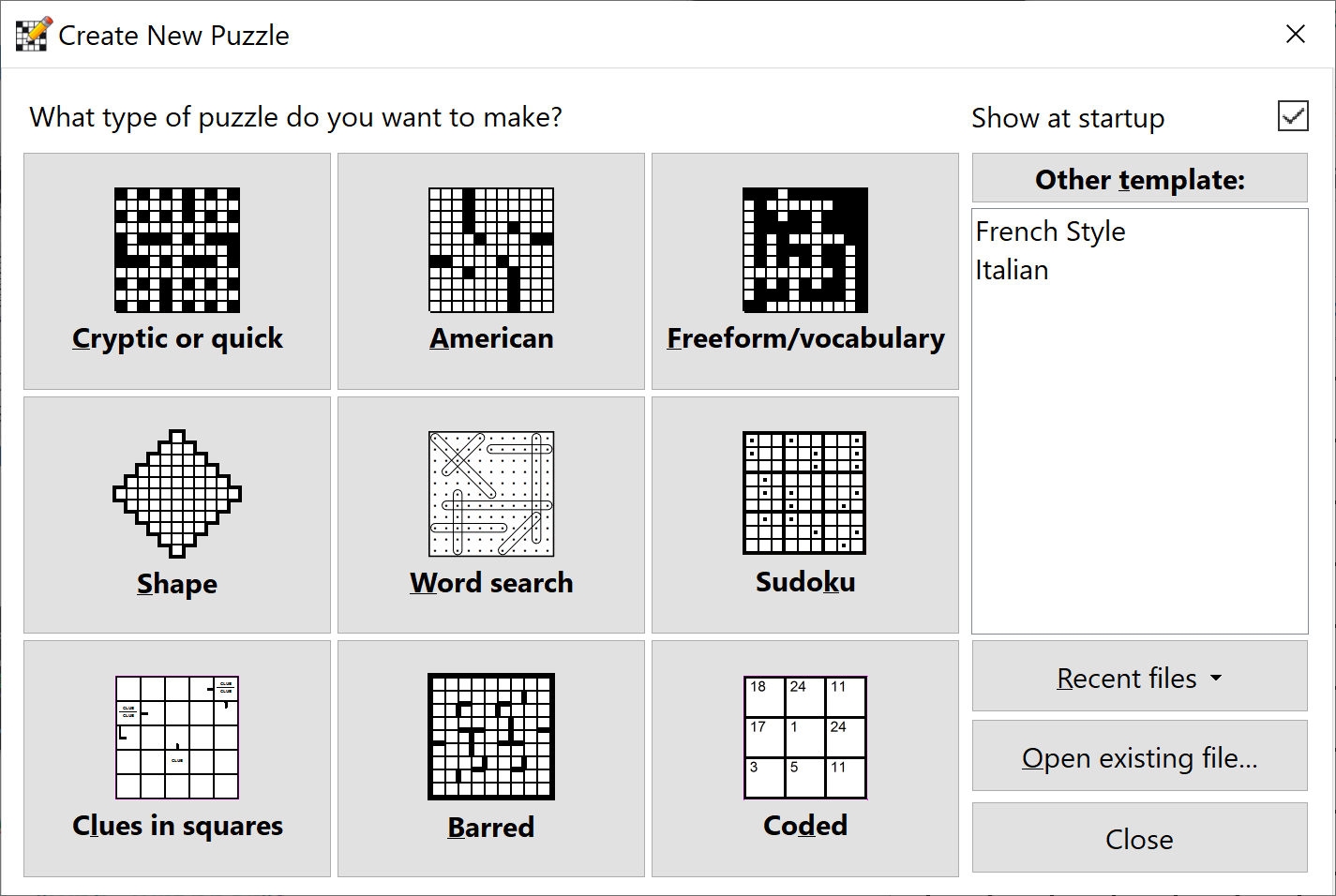 Crossword Compiler Crossword Puzzle Maker Software
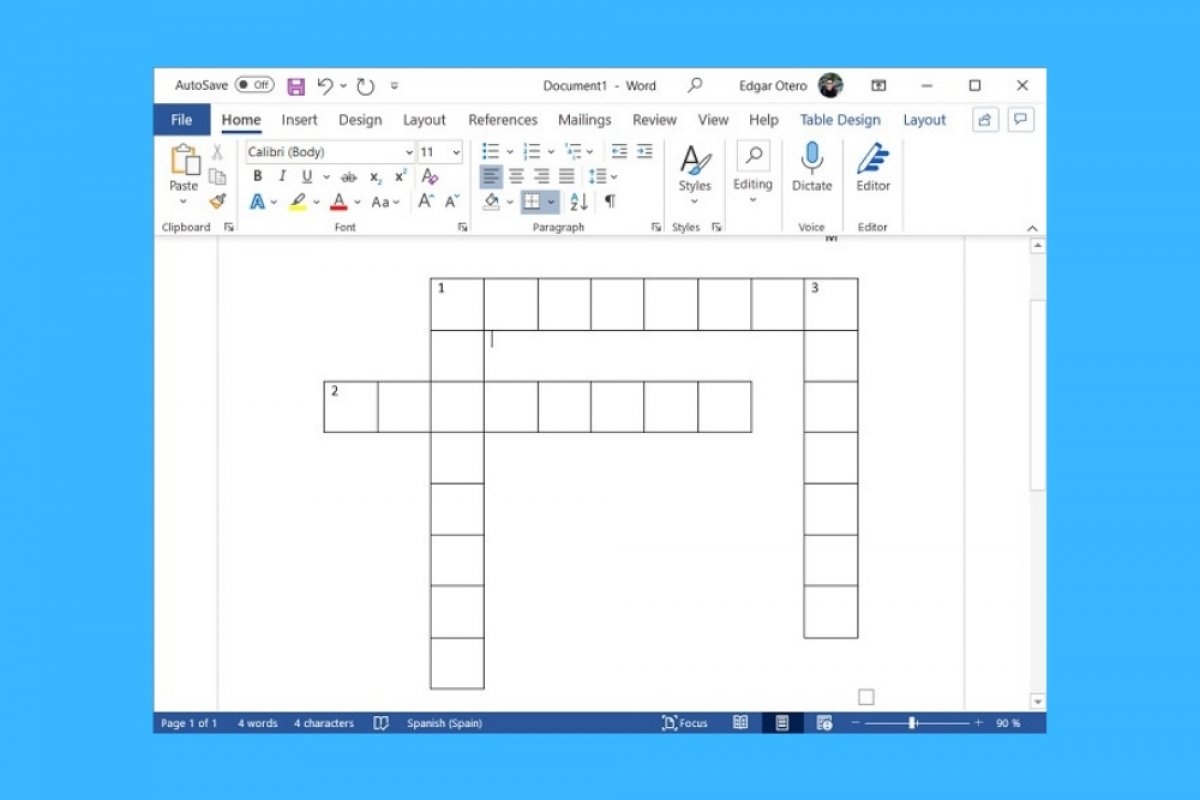 How To Make A Crossword Puzzle In Word